The iPhone Dev-Team has released Pwnage Tool 4.0 to jailbreak iOS 4. You can jailbreak iPhone 3GS (with the old bootrom), iPhone 3G, and iPod Touch 2G (Non-MC) running iOS 4 with Pwnage Tool while preserving the baseband so you can unlock with UltraSn0w 0.93. This guide will help you learn how to jailbreak iOS 4 with Pwnage Tool 4.0.
iPhone 3G and iPod Touch 2G (non-MC) users can also use RedSn0w 0.9.5 b5-3 to jailbreak iOS 4.
IMPORTANT:
We strongly recommend you to read PwnageTool 4.0 release notes posted here first and then proceed.
PwnageTool 4.0 supports:
- iPhone 3GS (Old BootROM only + Already jailbroken NOT with Spirit jailbreak)
- iPhone 3G
- iPod Touch 2G (Non-MC)
- Mac OS X only
*** iPod Touch 3G and iPod Touch 2G (MC) are NOT supported with PwnageTool 4.0. iPhone 2G and iPod Touch 1G does NOT support iOS 4.0***Disclaimer:
This guide is for testing and educational purposes only. Use it at your own risk. We cannot be held responsible if anything goes wrong.
Let’s jailbreak iOS 4.0 on iPhone 3Gs, iPhone 3G and iPod Touch 2G with PwnageTool 4.0.
How to Jailbreak iOS 4.0 with PwnageTool 4.0
All the required files are linked at the bottom. Download and put everything in a folder named Pwnage on your desktop for quick access.Step 1
Download and install iTunes 9.2. (Download Link below) Connect your iPhone, iPod Touch to iTunes and backup your profile settings.Step 2
Double click on PwnageTool 4.0.dmg to mount it. (Download link below)
The warning box will popup. Just hit the OK button.

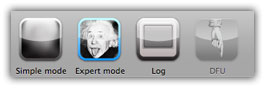
Step 3
Select your device (iPhone or iPod Touch). A big Green check mark will appear on the selected device (once chosen).Now hit the big Blue Arrow button at bottom right to proceed and continue.

On the next page, PwnageTool will automatically find the IPSW file. If not found then click “Browse for IPSW” button and select the downloaded IPSW iOS 4 file from the Pwnage folder. A check mark will appear next to it.
Step 4

Steps 5
Then Select General and Hit next again.
This is one of the most important steps. Please read the following carefully about selecting the activate the phone option.
- Activate the iPhone: Click activate the phone (only if you’re on unofficial carrier). Deselect Activate the phone option if you are on official carrier.
- Re0enable functionality: (for iPhone 3G and iPod Touch 2G users only) Check mark this option if you want to enable multitasking, wallpaper and battery percentage on iOS 4.0. These options are disabled in stock firmware.
- Root Partition Size: You can decide your Root Partition Size where OS resides. For the iOS 4 firmware you may have to increase the size of your root partition slightly for the IPSW build to be successful. I like 1GB.

Go to Download packages tab and hit the Refresh button to display all the available packages. Double click your desired package, it will be downloaded and will be available under the Select Packages tab.

IMPORTANT: Please make sure that your desired package is compatible with iOS 4.0.
When you have downloaded your desired packages, go back to Select Packages tab and check mark the ones you want then hit the Blue Arrow Button to proceed.
Custom Packages Settings. Leave these settings as is for now. Just click the Blue Arrow Button to proceed.


Step 6
Now you are ready to build your custom firmware. Click the build button to select it, then click the blue arrow button to proceed.


Step 7
NOTE: If you’re already jailbroken (other than the Spirit jailbreak) simply put your iPhone into recovery mode.Please make sure you are restoring to the custom IPSW, not the stock one from Apple (otherwise you aren't jailbreaking your phone)
If it’s the first time you’re jailbreaking your iPhone, Be ready to follow directions to get into DFU Mode. (Just click the DFU button in PwnageTool)
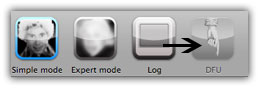
- You will be asked to Turn your device OFF.
- Hold the home button and the power button for 10 seconds.
- Then, you will have to release the power button and hold the home button for 10-30 seconds to enter DFU.

Unplug the iPhone from the USB, turn it OFF, then turn it back ON. Reconnect it to USB and turn OFF the iPhone when prompted.
When followed correctly, PwnageTool will display a message telling you that it has successfully entered DFU mode. iTunes will also pop-up.
Step 8
In iTunes, hold the Alt/Option key and hit Restore. From the popup window, browse to the Pwnage Folder and select you custom .ipsw file that you just created and click Open Button.iTunes will now restore the firmware on your iPhone. This can take up to 10 minutes.
When done, you have successfully Jailbreak iOS 4.0 firmware with PwnageTool 4.0.
Downloads
- Download iTunes 9.2 here.
- Download iOS 4 (all devices) below:
Download iOS 4.0 for iPhone 4Download iOS 4.0 for iPhone 3GS
Download iOS 4.0 for iPhone 3G
- Download PwnageTool below:
MGN Link (One time registration, access to all previous, current, and future downloads)
Unofficial Mirror Link # 1 (United States)
Unofficial Mirror Link # 2 (Romania)
Official Bittorrent Release:
PwnageTool 4.0 Torrent - PwnageTool_4.0.dmg.5644414.TPB.torrent
SHA1 Sum = 15bdb90ec40f1e279bb648eb7e9d90ebe07b66d2
Unlock iOS 4.0
You can unlock iPhone 3GS and iPhone 3G with UltraSn0w at any baseband.All you have to do is follow the guide below:Enjoy the new and improved iOS 4.0 and don't forget to leave us comments below. You can stay tuned for more jailbreak and unlocking info by following us on Twitter and/or subscribing to our RSS feeds.


No comments:
Post a Comment
Note: Only a member of this blog may post a comment.